
Link your Roblox account
Linking shows a server which Roblox account is yours. The server can then give you the right roles and knows who you are in its game.
How to link your account
- In the Discord server, type
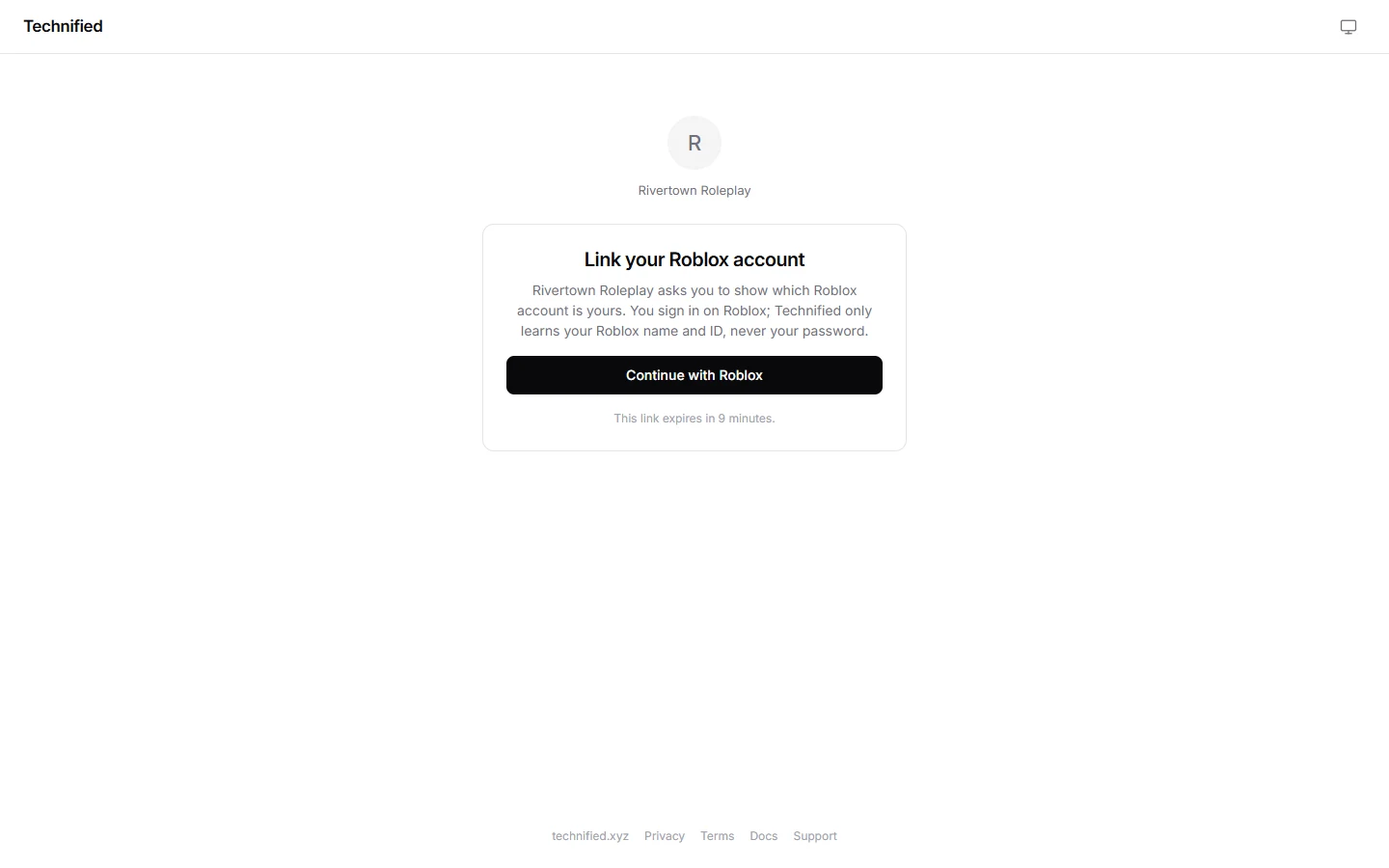
/verify, or press the Verify button in the server’s verify channel. - The bot answers with a private link that only you can see. Open it.
- Press Continue with Roblox and sign in on Roblox’s own page. Allow Technified to see your profile.
- You come back to Technified and see You are verified. Your roles arrive in Discord within a moment.
Good to know
You sign in on Roblox, not on Technified. Technified only learns your Roblox name and ID, never your password. The link works for a few minutes; if it runs out, use
/verify again.Other servers
You link your account once. On another server that uses Technified, use /verify there too: it asks you to confirm that this server may use your link, and you do not have to sign in on Roblox again.
Useful commands
/updategives you your roles again, for example after you got a new rank in a Roblox group./reverifylinks a different Roblox account instead./unlinkremoves the link to your Roblox account.
Still stuck? Get help from the Technified team.