
Your Roblox group
Manage your Roblox group from the dashboard: who is in it, their ranks, and who wants to join.
First: a Roblox API key
Technified needs a key from Roblox to change your group. You make it once:
- In the dashboard open Connection → Roblox API key. The page links to Roblox and lists exactly which permissions the key needs.
- On Roblox, create the API key with those permissions and copy it.
- Back in the dashboard, paste it, choose your Roblox group and save. Technified checks it straight away and shows Works.
Good to know
The key is stored encrypted and never shown again. If it stops working, use Replace.
The Group section
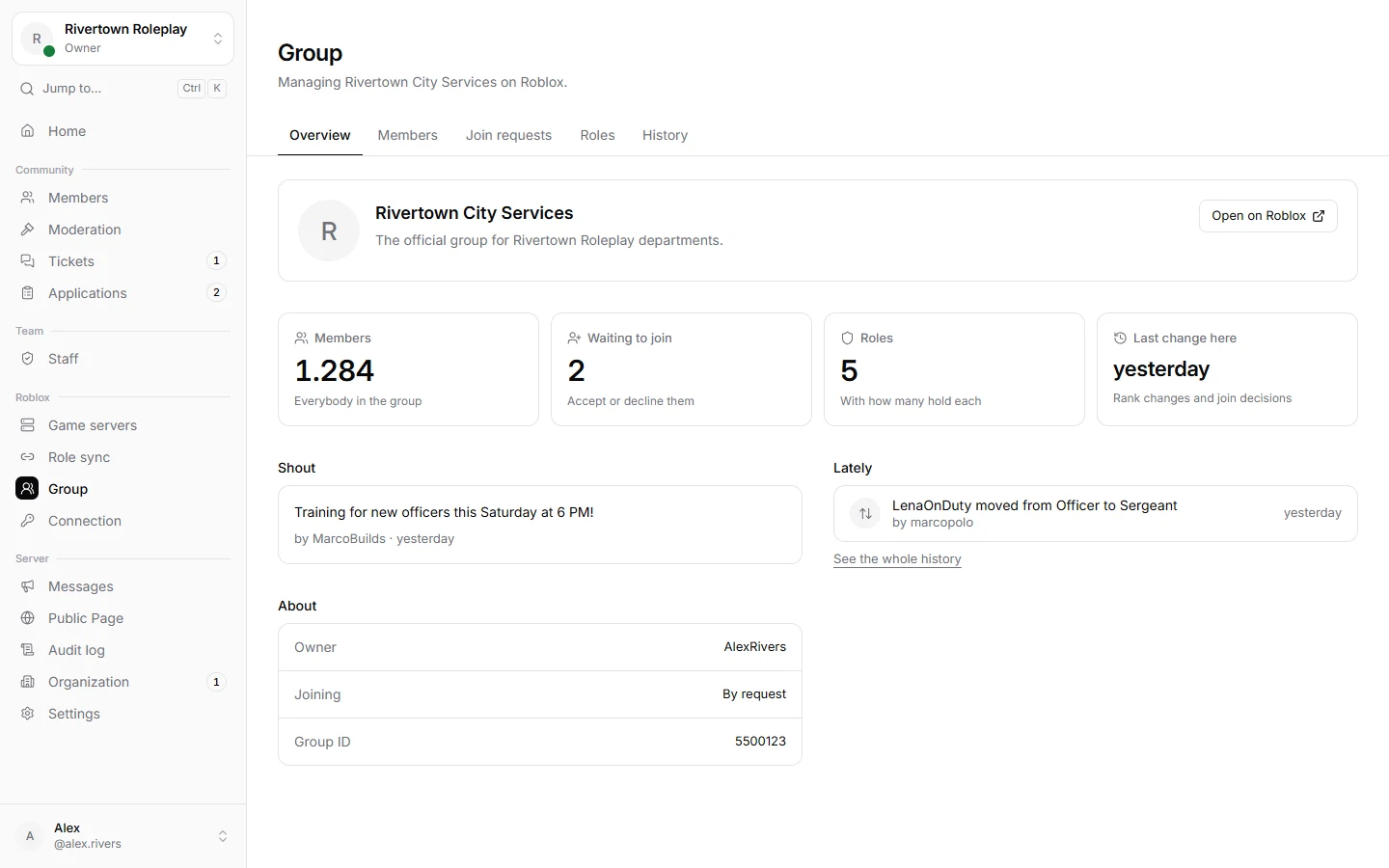
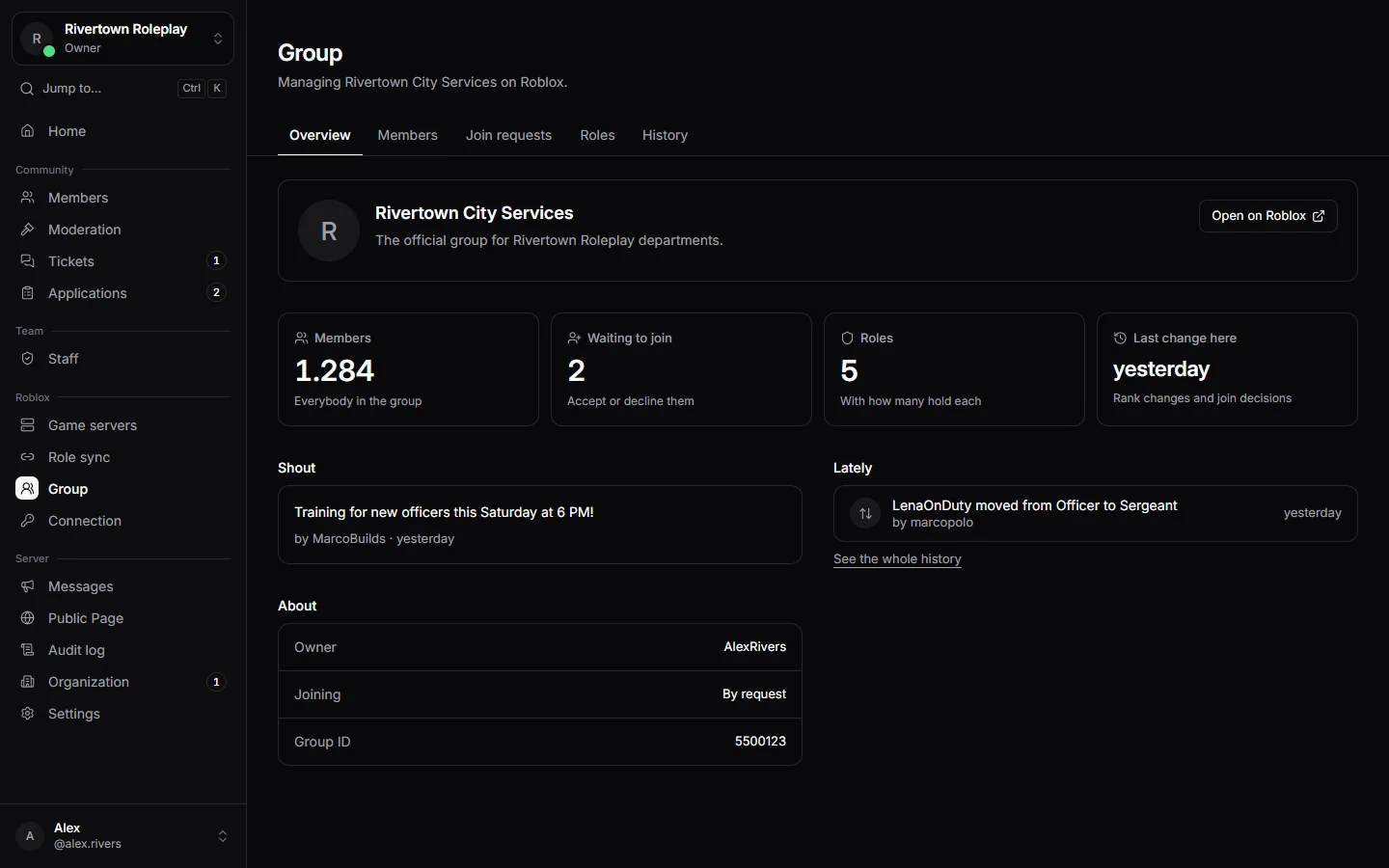
- Overview: your group’s picture, description, shout and numbers at a glance.
- Members: search members, see all their roles, and change somebody’s rank.
- Join requests: accept or decline people who want to join, one by one or several at once. A badge shows who is verified on your server.
- Roles: every rank with how many members hold it.
- History: every rank change and join decision made through Technified, with who made it.
Still stuck? Get help from the Technified team.