
Setting up verification
Verification lets members show which Roblox account is theirs. Set up what they get once they did.
Roles and nickname
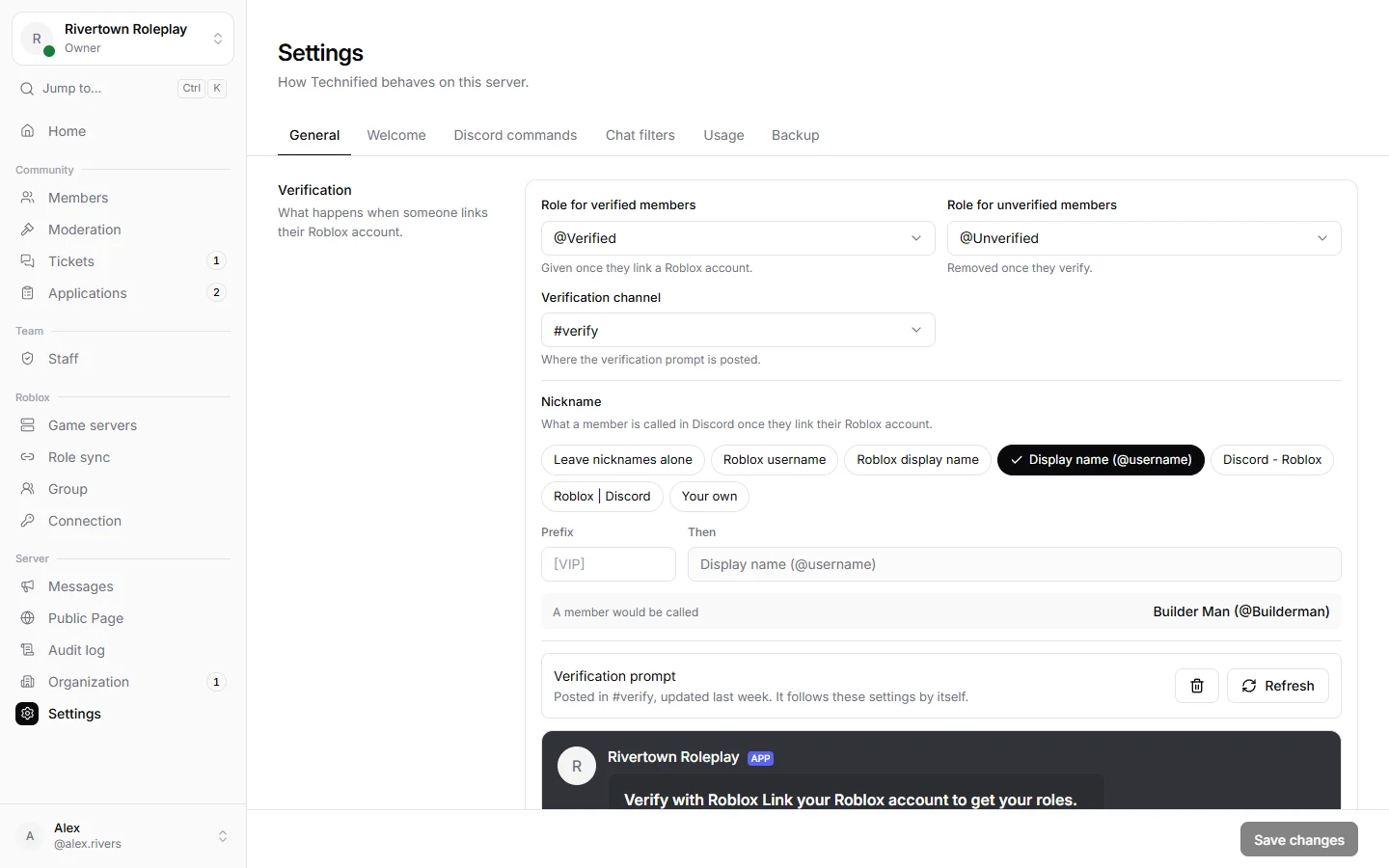
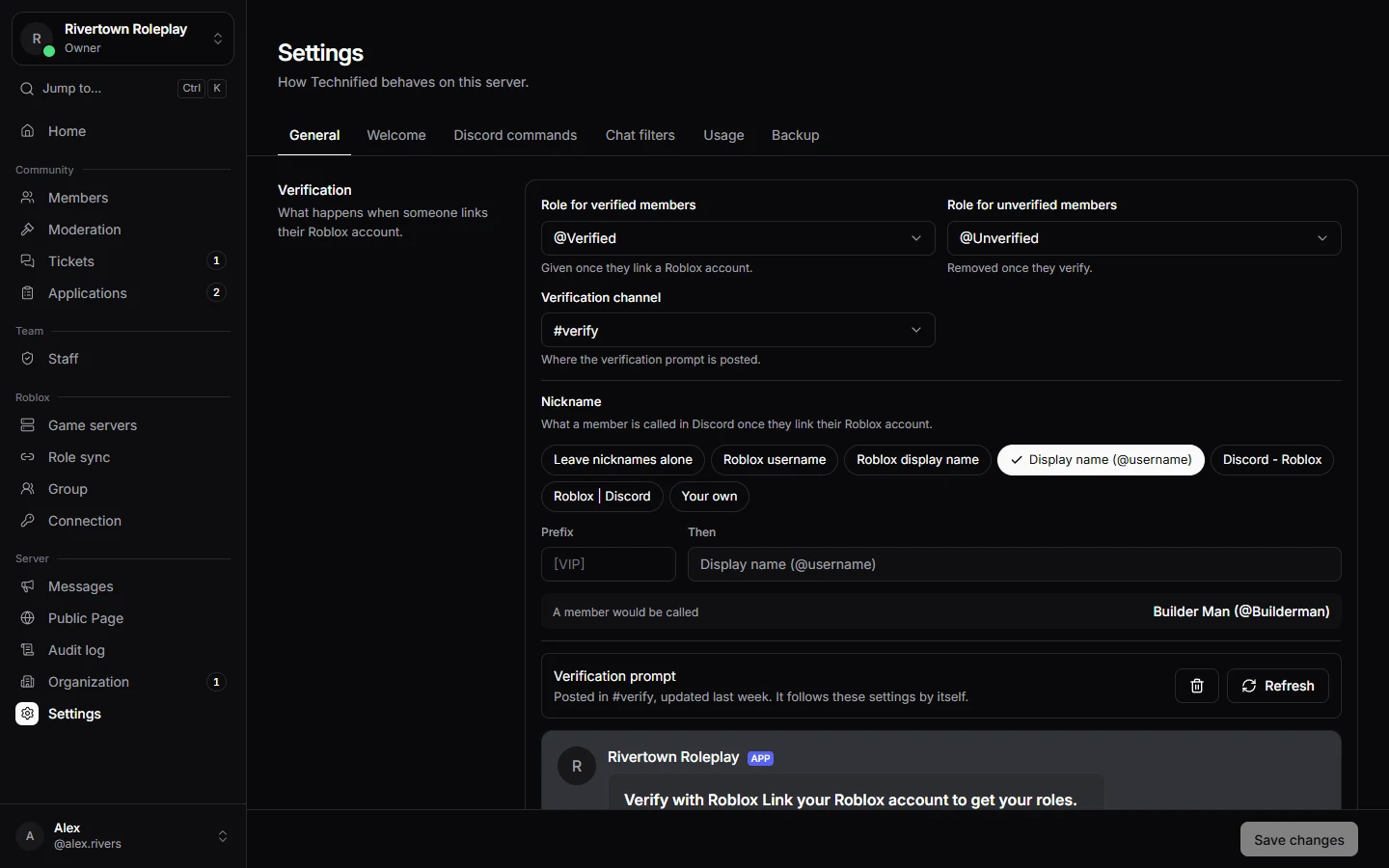
- Open Settings → General.
- Under Verification, choose a Role for verified members. You can also choose a Role for unverified members, which is taken away once they verify.
- Under Nickname, pick how verified members are named in Discord, for example their Roblox display name with their username.
- Press Save changes.
The verify button
Choose a Verification channel and post the prompt from the same page. Members press its Verify button instead of typing a command. You can also post it with /verification-panel.
More roles from Roblox
To give roles for a Roblox group rank, a game pass or a badge, use Role sync.
Careful
The Technified role in Discord must be above every role it gives, or Discord refuses to hand them out.
Still stuck? Get help from the Technified team.