
Staff roles and permissions
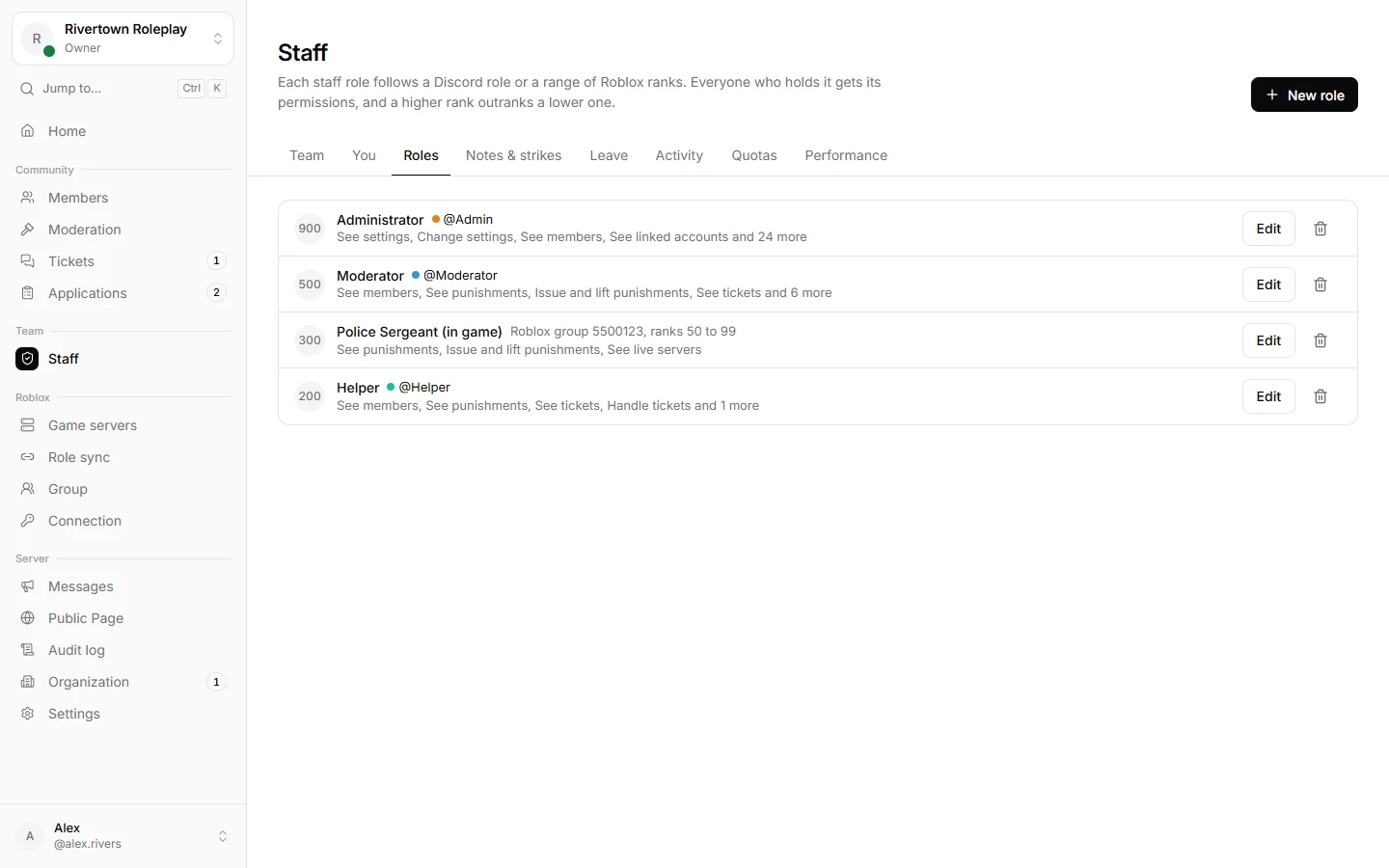
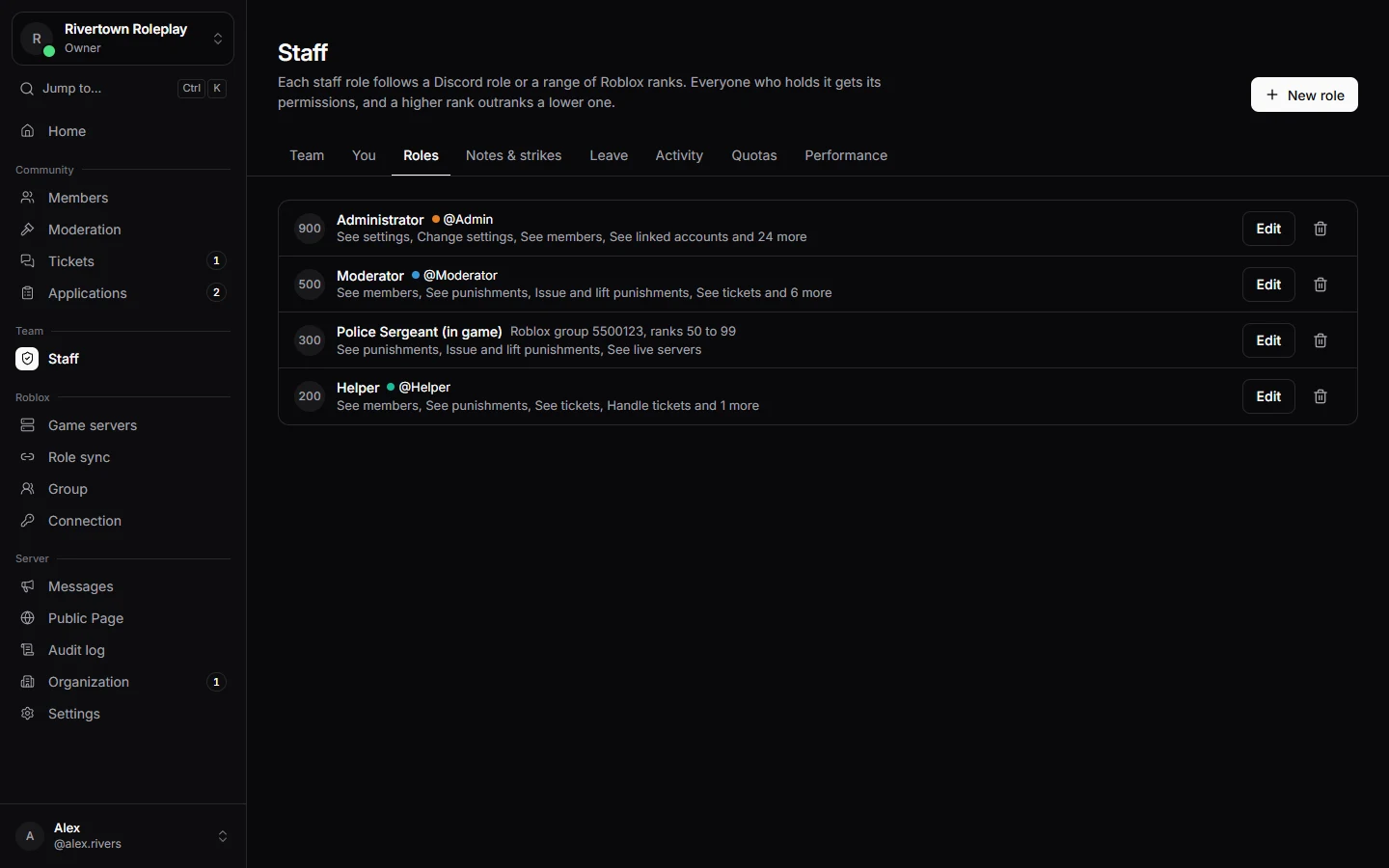
Your staff team is made of staff roles. Each one says who belongs to it, how high it ranks, and what its members may do. Server administrators may always do everything on their own server.
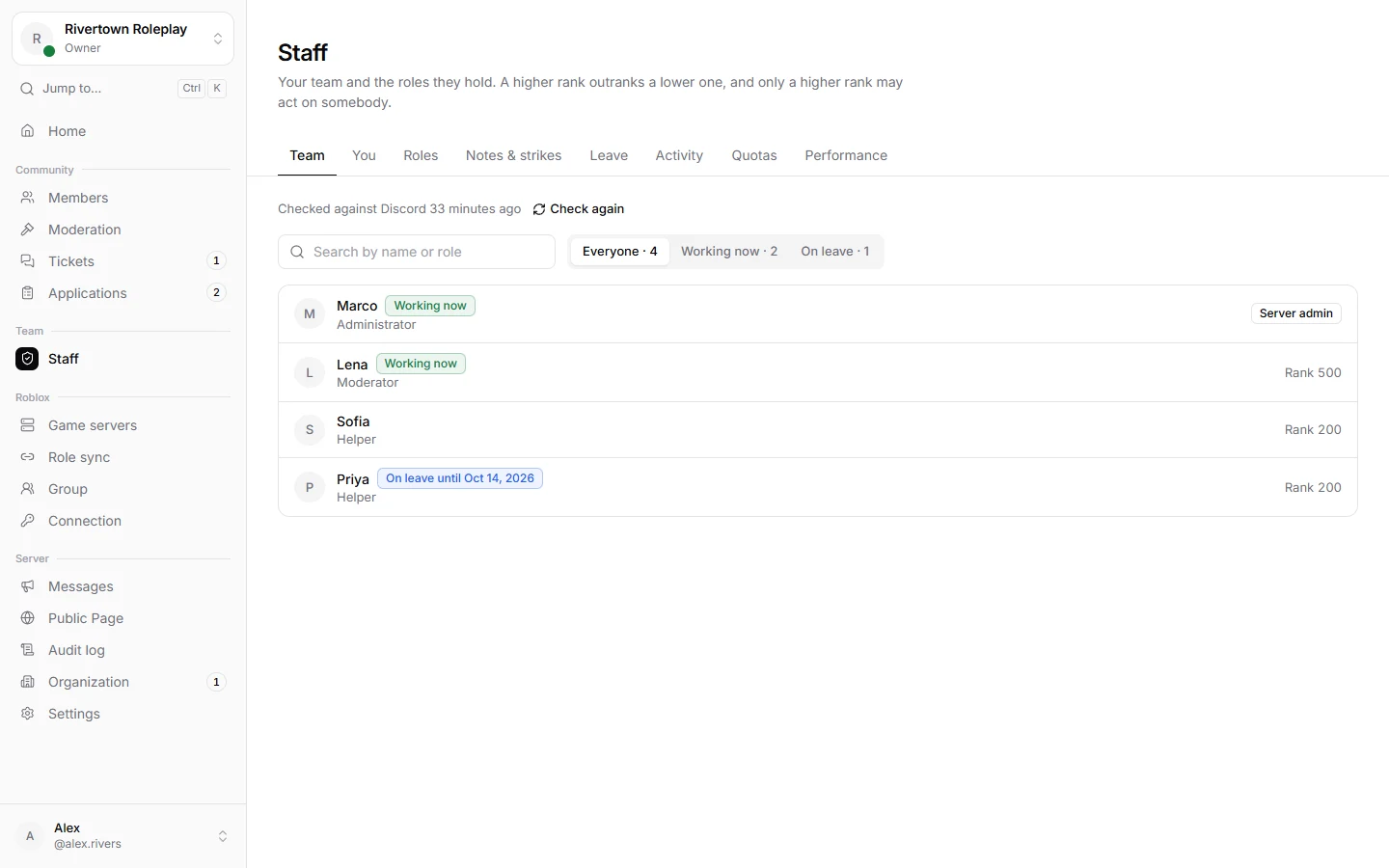
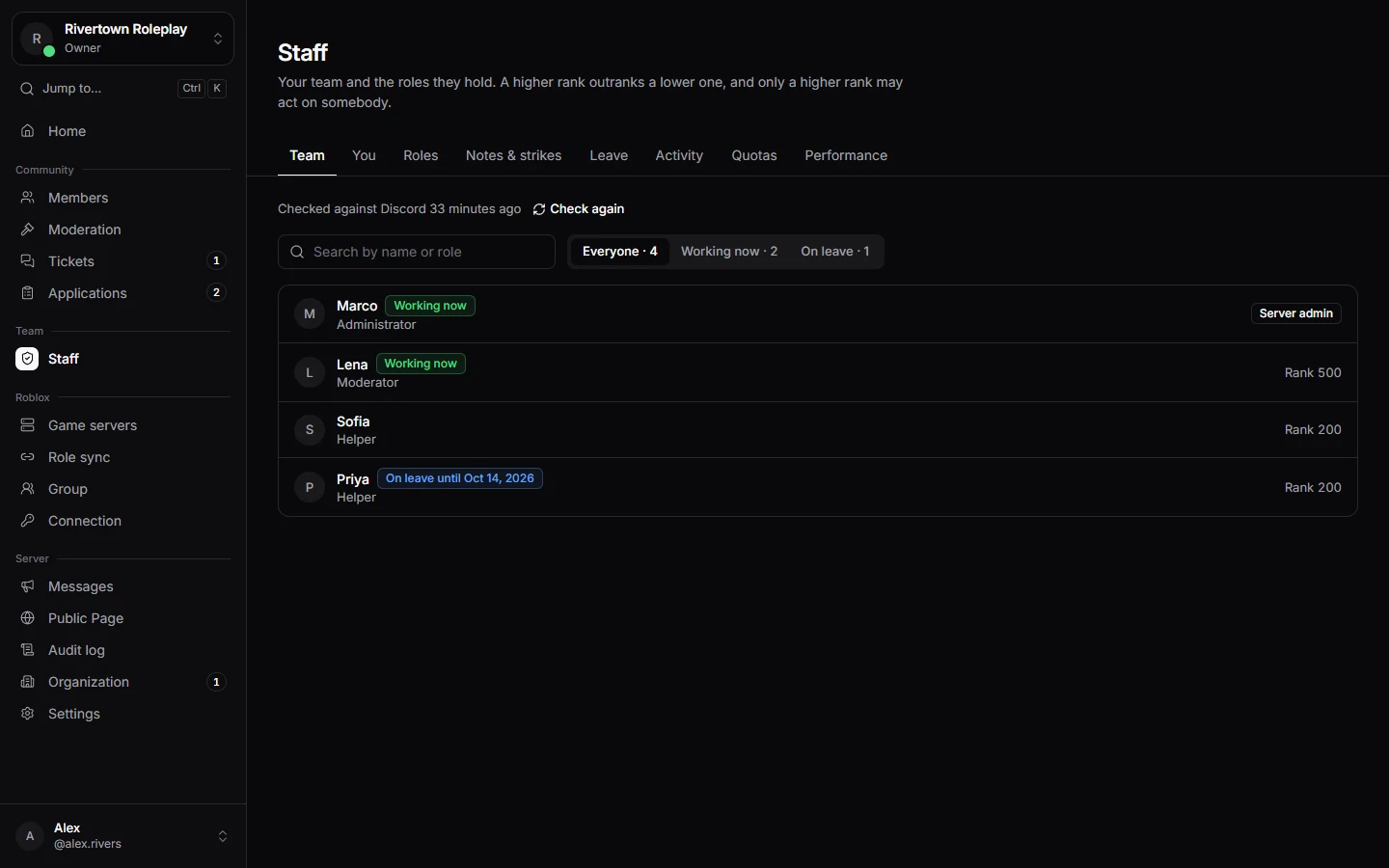
Making a staff role
- Open Staff → Roles and press New role.
- Give it a Name, like Moderator.
- Choose who belongs to it: A Discord role (everybody with that role is in it) or A Roblox group rank (everybody with a rank in a range, or with one Roblox role, is in it).
- Set its Rank, a number from 1 to 1000. Higher means more senior.
- Tick What holders may do, and save.
Why rank matters
Staff can only act on people ranked below them: punish them, lift their punishments, or write strikes about them. Give your senior roles a higher rank than your junior ones. Nobody can give a role more permissions than they have themselves.
The permissions
| Area | What you can allow |
|---|---|
| Members | See members, see linked Roblox accounts, send verification links and remove links. |
| Moderation | See punishments, issue and lift them, lift any punishment even from a higher rank, see evidence, see and change chat filters. |
| Tickets and forms | See tickets, handle tickets, see applications and appeals, decide them and edit forms. |
| Staff | See staff, write notes and strikes, manage staff roles, leave and quotas. |
| Game servers | See live servers, send commands to one server, send to every server at once. |
| Roles and groups | See and change role rules, see Roblox groups, change Roblox group ranks. |
| Server | See and change settings, see the audit log, see and create game keys. |
Good to know
The two organization permissions, managing the organization and punishing across it, are not given by staff roles. They come from organization roles; see Organizations.
Leave, quotas and records
With the permission to manage staff, you decide leave requests under Staff → Leave, set hour goals under Quotas, and write notes and strikes under Notes & strikes. Activity and Performance show how active everybody was.
Still stuck? Get help from the Technified team.