
Setting up tickets
A ticket panel is the message with the button members press to open a ticket. You decide how it looks and what happens when somebody presses it.
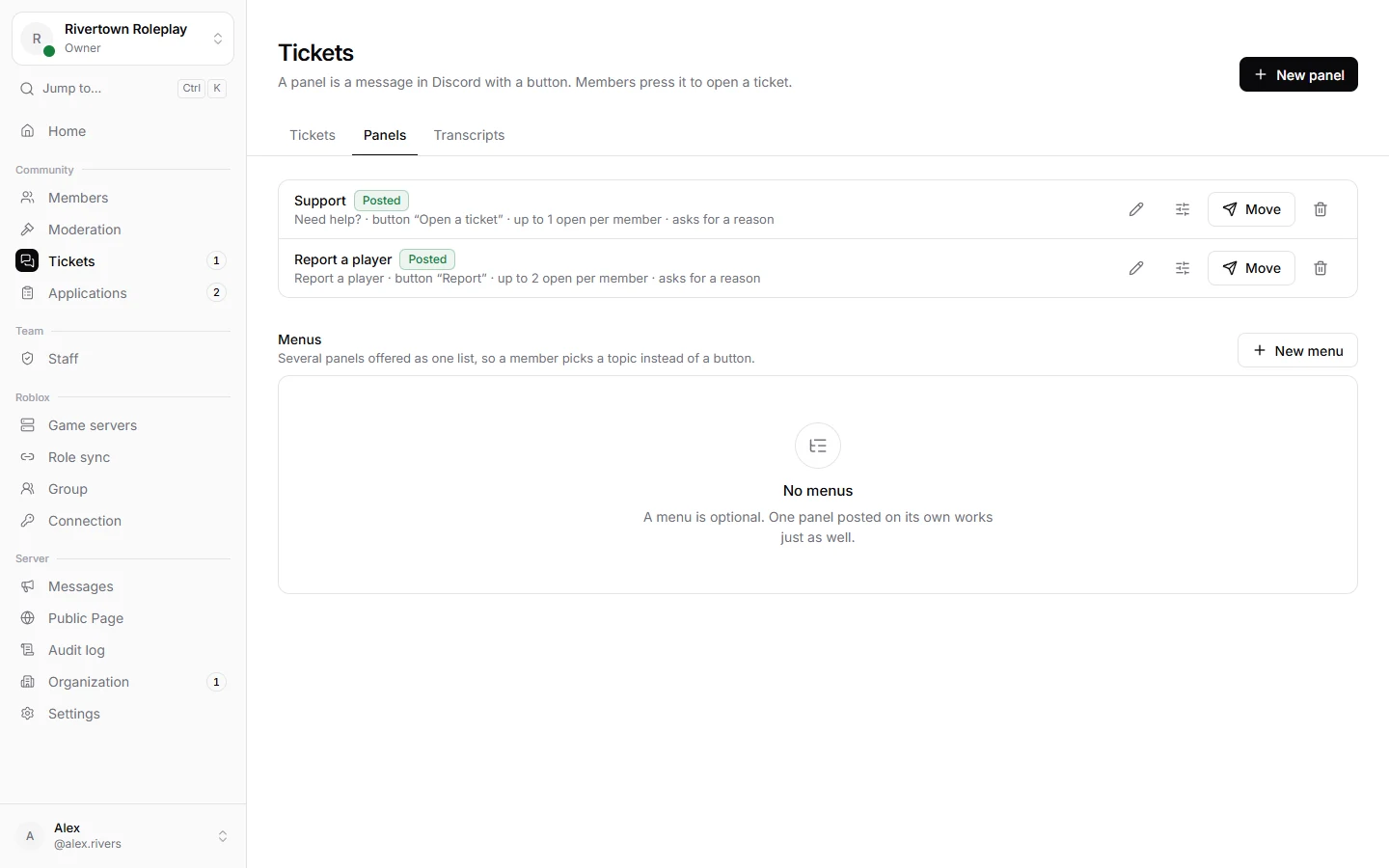
Making a panel
- Open Tickets → Panels and add a panel.
- Write the Title, the Description and the Button text, and choose a Button color.
- Fill in what happens when somebody presses the button (see below).
- Choose a channel and post it. You can change it later and update the posted message.
The settings
| Setting | What it does |
|---|---|
| Category for ticket channels | Where the new ticket channels are made in Discord. |
| Channel name | How ticket channels are named, for example ticket-{number}. |
| Roles that see these tickets | Which staff roles can see and answer them. |
| First message in the ticket | What the bot says when the ticket opens. |
| Members must give a reason | Asks what it is about before the ticket opens. |
| Open tickets per member | How many tickets one person may have open at once. |
| Close quiet tickets | Closes a ticket by itself after some hours without messages. |
| Delete closed ticket channels | Removes the channel some hours after closing. |
| Save a transcript when closed | Keeps a copy of the conversation. |
Menus
Have several kinds of tickets, like support and reports? A menu puts several panels into one message with a list to choose from, so your channel stays tidy.
Still stuck? Get help from the Technified team.